Popular Vendors
Demo Microsoft MO-201 Exam Questions
Demo practice questions for guest users.
Question 1
SIMULATION Instructions Exam Environment Exam Interface and Controls The exam panel provides access to the project task(s). Each project has an associated file in which you will perform the project tasks.
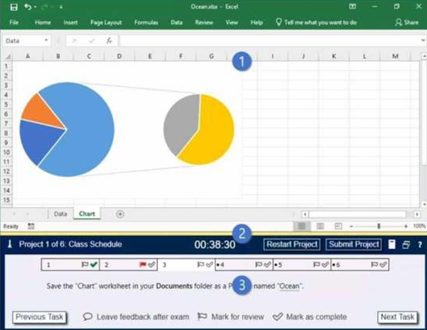
1. Project file 2. Split bar 3. Exam panel You can modify the exam interface to fit your needs in the following ways: To increase or decrease the exam panel font size, press Ctrl+Plus or Ctrl+Minus. To change the height of the exam panel, drag the split bar between the project file and the exam panel. • To minimize the exam panel, click the Collapse Panel arrow in the upper-left corner of the exam panel. The minimized exam panel displays the Expand Panel button, the project number and name, the remaining time, and the Restart Project and Submit Project buttons.
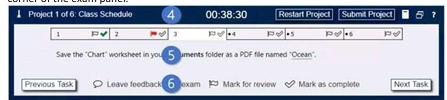
4. The Information bar at the top of the exam panel displays the current project and total number of projects, the remaining exam time, and the following commands: • Collapse Panel. Minimizes the exam panel to provide more space for the project file. • Restart Project. Closes and reopens the current project file without saving your changes. • Submit Project. Saves your changes, submits the project file, and moves to the next project. • Calculator. A calculator is available in some exams. You are not required to use the calculator. • Restore. Restores the size and position of the project file and exam panel to the defaults. • Help. Displays information about the exam interface. 5. The Content area displays the task tabs and the current task description. 6. The Navigation area at the bottom of the exam panel contains the following commands. • Previous Task/Next Task. Saves your response and moves to the previous or next task in the current project. • Leave feedback after exam. Flags the task to indicate that you want to leave feedback about it after the exam. • Mark for review. Flags the task to indicate that you want to return to it before you finish the exam. • Mark as complete. Flags the task to indicate that you feel you have completed the task. In projects that contain multiple tasks, you can switch between tasks by clicking the task tab, Next Task button, or Previous Task button. End of the instructions. On the “2019 Visitors” worksheet, modify the conditional formatting rule to format rows for parks that have a “Size” greater than 1,000 square miles.
Correct Answer: A
Explanation:
Conditional Formatting is a feature in Microsoft Excel that automatically formats cells when they meet specific conditions. It helps users quickly identify important data, trends, or values within a dataset.
If you apply Greater Than 100:
Conditional Formatting → Highlight Cells Rules → Greater Than/Less Than is used to automatically format cells whose values are above or below a specified number, making important data easier to spot and analyze.
Conditional Formatting is a feature in Microsoft Excel that automatically formats cells when they meet specific conditions. It helps users quickly identify important data, trends, or values within a dataset.
Steps to Highlight Values- Select the entire dataset or the range of cells you want to analyze.
-
Go to the Home tab on the Excel ribbon.
-
Click Conditional Formatting in the Styles group.
-
Select Highlight Cells Rules.
-
Choose either:
- Greater Than – to highlight values above a specified number.
- Less Than – to highlight values below a specified number.
-
In the dialog box that appears:
-
Enter the comparison value in the box on the left.
-
For example, enter 100 if you want to highlight all values greater than 100.
-
Choose a formatting style from the drop-down menu on the right:
-
Light Red Fill with Dark Red Text
-
Green Fill with Dark Green Text
-
Yellow Fill
-
Or select Custom Format to create your own formatting.
-
Click OK.
Example
Suppose a column contains the following sales figures:
| Sales |
|---|
| 80 |
| 120 |
| 95 |
| 150 |
- 120 → Highlighted
- 150 → Highlighted
- 80 and 95 → Not highlighted
- Quickly identifies important values.
- Makes large datasets easier to analyze.
- Highlights high or low performers.
- Improves data visualization without manually formatting cells.
Conditional Formatting → Highlight Cells Rules → Greater Than/Less Than is used to automatically format cells whose values are above or below a specified number, making important data easier to spot and analyze.